+1 (786) 209-1854



Creating a group
How to create a group?
- Go to Groups.

- Click Create group.

Creating a group consists of three steps.

- Call settings
- Hold settings
- Employees
Step one. Call settings
Call settings
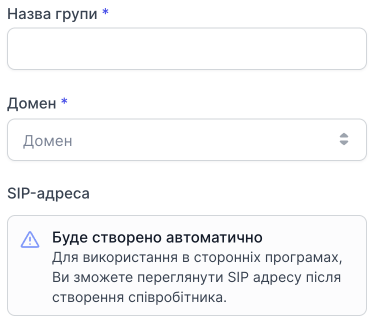
- Group name
- Domain
- The SIP address will be created automatically
Call distribution algorithm in a group

Learn more about the algorithms →
While the customer waits for the operator to answer
-
Your position in the queue (decide whether to play a voice file with the queue position for the customer while they wait to be connected to an operator)
-
Announcement of the average waiting time (whether to inform the customer of the average operator waiting time)
-
Update group statistics every (used by the system to determine the operator when a call algorithm is selected)
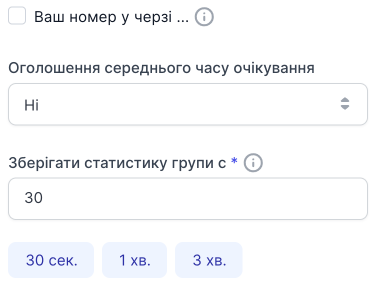
Click Continue.

Step two. Hold settings
Hold settings
- Operator call time
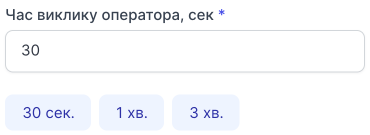
Define how long the customer will be connecting to an operator before the call is transferred to the next operator.
You can choose one of the preset options or enter your own.
- Queue length
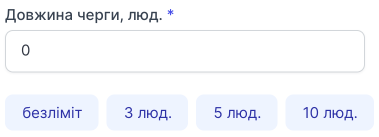
Define the queue length after which people on the line will be dropped.
0 means unlimited. There will be no drops.
You can choose one of the preset options or enter your own.
- Interval between attempts to call operators
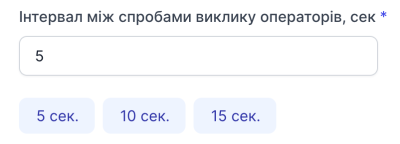
Define the interval between attempts to call operators. (The time an operator will have to answer the call.)
You can choose one of the preset options or enter your own.
- Operator rest time before sending calls to them again
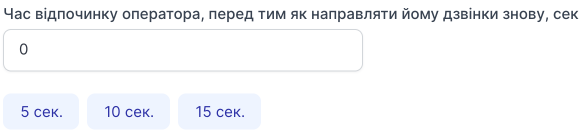
Define the operator's rest time before sending calls to them again.
You can choose one of the preset options or enter your own.
Melodies and sound notifications
- Melody "While waiting to connect to an operator"

You can choose a music file or a voice file that will be played to the caller while they wait to connect to an operator.
Step three. Employees
Adding employees to a group
To add an employee/employees to a group:
- Click Add employees.

- Select the employee/employees you want to add in the All employees list, hover over them, and click the + button.
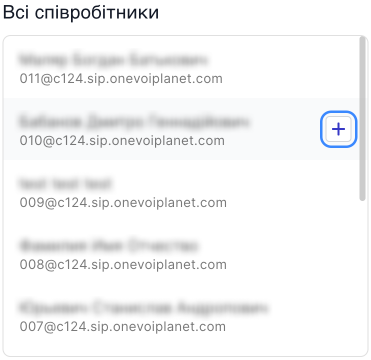
After clicking the + button, the employee will be moved to the right-hand Added employees list.
To add all employees to this group, click the Add all button.
To remove all selected employees from those added to this group, click the Remove all button.
- Click Save to save the list of added employees.

Click Save settings to create the group.