+1 (786) 209-1854

Language: English
  • English
  • Українська
  • Русский
  • Polski
  • Deutsch
  • Français
  • Español
  • Português
  • Nederlands
  • Svenska
  • עברית
  • العربية
  • 中文
  • हिन्दी
  • Bahasa Indonesia
  • 日本語
  • Italiano
  • Türkçe
  • 한국어
  • Tiếng Việt
  • ქართული
  • Filipino
  • ไทย
  • Čeština
  • Română
  • Ελληνικά
  • Dansk
  • Norsk
  • Suomi
  • বাংলা
  • اردو
  • فارسی
  • Bahasa Melayu
  • தமிழ்
  • Azərbaycan
  • Հայերեն
  • Қазақша
  • Oʻzbekcha
  • Magyar
  • Български
  • Slovenčina
  • Hrvatski
  • Slovenščina
Language: English
  • English
  • Українська
  • Русский
  • Polski
  • Deutsch
  • Français
  • Español
  • Português
  • Nederlands
  • Svenska
  • עברית
  • العربية
  • 中文
  • हिन्दी
  • Bahasa Indonesia
  • 日本語
  • Italiano
  • Türkçe
  • 한국어
  • Tiếng Việt
  • ქართული
  • Filipino
  • ไทย
  • Čeština
  • Română
  • Ελληνικά
  • Dansk
  • Norsk
  • Suomi
  • বাংলা
  • اردو
  • فارسی
  • Bahasa Melayu
  • தமிழ்
  • Azərbaycan
  • Հայերեն
  • Қазақша
  • Oʻzbekcha
  • Magyar
  • Български
  • Slovenčina
  • Hrvatski
  • Slovenščina

Stay connected anytime andanywhere!

Download OnePhone and get affordable and stable internet all over the world
StoreIosStoreAndroid
BackIcOnePhone eSIM

Where are you traveling to?

Chevron

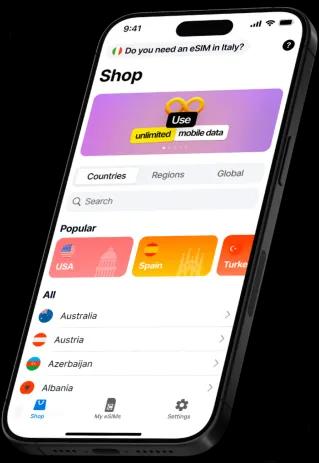
    3 easy steps to start using OnePhone eSIM app

    ic-0
    1

    Download an app

    Install OnePhone on your phone and explore its features

    ic-1
    2

    Purchase an eSIM

    Select your travel destination and choose the right data plan for your trip

    ic-2
    3

    Activate your eSIM

    Activate a plan before your trip to ensure you have internet access upon arrival

    eSIM full Ukraine:

    unlimited internet & calls

    ic-0

    lifecell

    Available tariff plans:

    eSIM with 150 bonuses on the account

    After purchase and activation, you can choose one of the tariff plans: Free Life/ProstoLife/Platinum Life/School Life/Smart Life/Powerful/Free Life. Region/Zvonkyi Bezmezh/. Smart/Family/Gadget Smart/Gadget Tablet/Gadget Router

    ic-1

    Vodafone

    Available tariff plans:

    Joice Pro

    Price with the service package for the first 4 weeks 230₴. The cost of the service package in the future: 260₴ /4 weeks.

    Vodafone Turbo

    Price with the service package for the first 4 weeks 4$. The cost of the service package in the future: 180₴ /4 weeks.

    Take a look at what others say about us
    10/10
    Stars

    Julia_Moore

    15 May

    A convenient app. Combines both business and travel, and I love the interface. The prices are reasonable and the internet connection is great. Overall, I'm satisfied and will definitely use it again. Now I don't have to worry about buying a SIM card abroad. I can fully immerse myself in the journey👍

    Great!
    Stars

    darkangel327

    15 May

    The app looks nice, with an easy-to-use interface. But e-Sim looks perfect. Cheap prices, understandable setup instructions, and a great list of supported countries. I'll wait for the next updates. Well done!

    Nice app
    Stars

    alexa001m

    13 May

    My first esim app. Really simple to use, cheap tariffs, good internet connection. Happy to use it!

    Very best app for eSIM
    Stars

    lena

    12 May

    Thank you for buy eSIM Spain

    Doubting about using eSIM?

    ic-0

    Flexible & Budget-Friendly Plans

    Stay connected in more than 200 countries with the most favorable tariffs from OnePhone.

    ic-1

    eSIM

    No need to rearrange SIM cards in your smartphone anymore, because eSiM technology allows you to add more than 5 digital SIM cards at the same time.

    ic-2

    Effortless Connectivity

    Easy purchase and renewal of tariffs, even when traveling.

    ic-3

    24/7 Customer Support

    In need of assistance? Our 24/7 chat support is just a message away to keep you connected and help you with.

    ic-4

    Convenient Payment Options

    Pay in a way that is convenient for you: by bank card, Apple Pay, Google Pay.

    ic-5

    User-friendly interface

    An intuitive design to navigate, select plans, and track data usage with ease.

    Frequently Asked Questions

    How to purchase a travel eSIM plan?

    arrow

    OnePhone offers a wide range of tariff plans and regional eSIMs for accessing mobile internet while traveling. Top up your balance for the plan you want and enjoy high-speed internet with worldwide coverage. You can top up your account at any time through the app.

    1. Log in to your OnePhone account.
    2. Open the Travel eSIM section.
    3. In the Store tab, choose your country or region.
    4. Select the duration and amount of data (GB).
    5. Double-check your selection, choose a payment method, and complete the purchase.
    6. The purchased plan appears in the My eSIM tab, where you can activate it whenever it is convenient for you.

    How to install an eSIM profile on a smartphone?

    arrow

    If you already have the OnePhone app installed, you can open the eSIM installation guide right in the app: tap Help and go to the eSIM Connection section.

    Connecting an eSIM on Android

    Method 1 - Installation using a QR code

    1. After purchasing the plan, go to the My eSIM tab and select it.
    2. Tap How to install eSIM? to install the new eSIM.
    3. Scan the QR code to activate the eSIM (for convenience, you can send the QR code to another device for scanning).
    4. After scanning, the device opens the system settings, where you tap Add.
    5. The eSIM setup starts; wait for the connection to the carrier to complete. Name the new eSIM "OnePhone" for easier identification later.
    6. To use the OnePhone plan right away, open Settings > Connections > SIM manager and, in the Mobile data section, select the newly added network (OnePhone).
    7. Enable roaming: go to Settings > Connections > Mobile networks and turn on Data roaming.
    8. Connecting to the network can take 5-10 minutes. Once the eSIM is set up, you can start using mobile internet from OnePhone.
    9. You can check the eSIM status in the OnePhone app: go to My eSIM and select the plan to see your data balance, how much data has been used, and how long the plan stays active.

    Method 2 - Manual installation

    1. After purchasing the plan, go to the My eSIM tab and select it.
    2. Tap How to install eSIM? to install the new eSIM.
    3. A manual activation code is required for setup. You can find it in the Manual tab.
    4. On your smartphone, go to Settings > Connections > SIM manager and tap Add eSIM.
    5. Activate the eSIM by scanning the QR code (Method 1 above) or by entering the activation code. Return to the OnePhone app, go to My eSIM, select the plan, tap Manual, copy the activation code, and enter it in your smartphone's settings, then tap Done.
    6. To use the OnePhone plan right away, open Settings > Connections > SIM manager and, in the Mobile data section, select the newly added network (OnePhone).
    7. Enable roaming: go to Settings > Connections > Mobile networks and turn on Data roaming.
    8. Connecting to the network can take 5-10 minutes. Once the eSIM is set up, you can start using mobile internet from OnePhone.
    9. You can check the eSIM status in the OnePhone app: go to My eSIM and select the plan to see your data balance, how much data has been used, and how long the plan stays active.

    Connecting an eSIM on iOS

    Method 1 - Installation using a QR code

    1. After purchasing the plan, go to the My eSIM tab and select it.
    2. Tap How to install eSIM? to install the new eSIM.
    3. Scan the QR code to activate the eSIM (for convenience, you can send the QR code to another device for scanning).
    4. After scanning, the device opens the system settings and asks for permission to activate the new eSIM.
    5. Wait for the connection to the carrier to complete, then tap Continue.
    6. Wait for the eSIM to activate. Name it "OnePhone" for easier reference later.
    7. To use the OnePhone plan right away, open Settings > Mobile data, select the newly added network (OnePhone), and turn on Mobile Data and Data Roaming.
    8. Connecting to the network can take 5-10 minutes. Once the eSIM is installed, you can start using mobile internet from OnePhone.
    9. You can check the eSIM status in the OnePhone app: go to My eSIM and select the plan to see your data balance, how much data has been used, and how long the plan stays active.

    Method 2 - Manual installation

    1. After purchasing the plan, go to the My eSIM tab and select it.
    2. Tap How to install eSIM? to install the new eSIM.
    3. A manual activation code is required for setup. You can find it in the Manual tab.
    4. On your device, go to Settings > Mobile Service.
    5. Tap Add eSIM.
    6. Select Use QR Code.
    7. You can activate the eSIM by scanning the QR code (Method 1 above). To add it manually, tap Enter Details Manually.
    8. Enter the activation address and code. Return to the OnePhone app, go to the My eSIM tab, select the plan, tap Manual, and enter the details in your smartphone's Settings, then tap Next.
    9. If the details are correct, an eSIM activation page appears. Tap Continue.
    10. Wait for the eSIM to activate. Name it "OnePhone" for easier reference later.
    11. To use the OnePhone plan right away, open Settings > Mobile data, select the newly added network (OnePhone), and turn on Mobile Data and Data Roaming.
    12. Connecting to the network can take 5-10 minutes. Once the eSIM is installed, you can start using mobile internet from OnePhone.
    13. You can check the eSIM status in the OnePhone app: go to My eSIM and select the plan to see your data balance, how much data has been used, and how long the plan stays active.

    How can I check if my phone supports eSIM?

    arrow

    You can check your phone's user manual for supported technologies. You can also confirm eSIM compatibility through the system settings menu.

    For Apple devices

    For iPhone users, checking eSIM compatibility is simple:

    1. Go to Settings > General > About.
    2. Scroll down to the Network provider lock field. If it says No SIM restrictions, your iPhone supports eSIM.

    Alternatively, go to Settings > Mobile Service and look for the Add eSIM button. If you see this option or another way to add an eSIM, your phone is compatible.

    For Android devices

    eSIM support on Android is more fragmented, as it depends on the specific model and manufacturer. Most modern Google Pixel and Samsung Galaxy phones support eSIM.

    1. Go to Settings > Connections > SIM Manager.
    2. Look for options such as Add network provider, Add eSIM, or Upload SIM Card.

    Download OnePhone and get prepared for your nexttrip with the internet!

    StoreIosStoreAndroid
    BackIcIcIphoneBackIcTabIcIphoneTabIcIphoneMob
    Try OnePhone eSIM now!
    IcQr