Popular
Basic virtual PBX functionality for a quick and easy start
/ month
Ability to connect 1 number
5 employees in the plan
Call history for the selected period
Audio recording of all conversations
Single-level voice menu (up to 15 sec)
CRM integrations
Call forwarding
Mobile app for calls
Advanced virtual PBX functionality for medium and large teams
/ month
Ability to connect up to 3 numbers
12 employees in the plan
Multi-level voice menu (up to 30 sec)
Included in the Business plan
Connect the CallBack widget for free

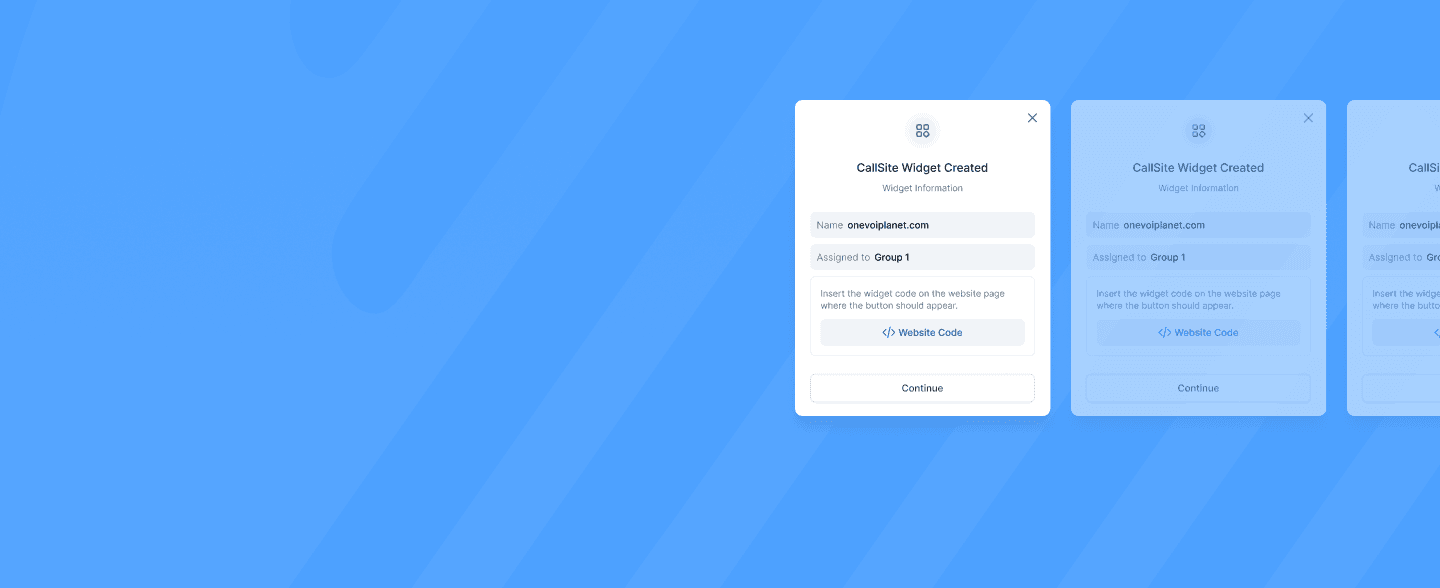
A CallBack widget is an interactive element that you create in your OneVOIPlanet account and embed on your website. When a visitor leaves their phone number, it connects them with your operator, so no additional hardware is required.
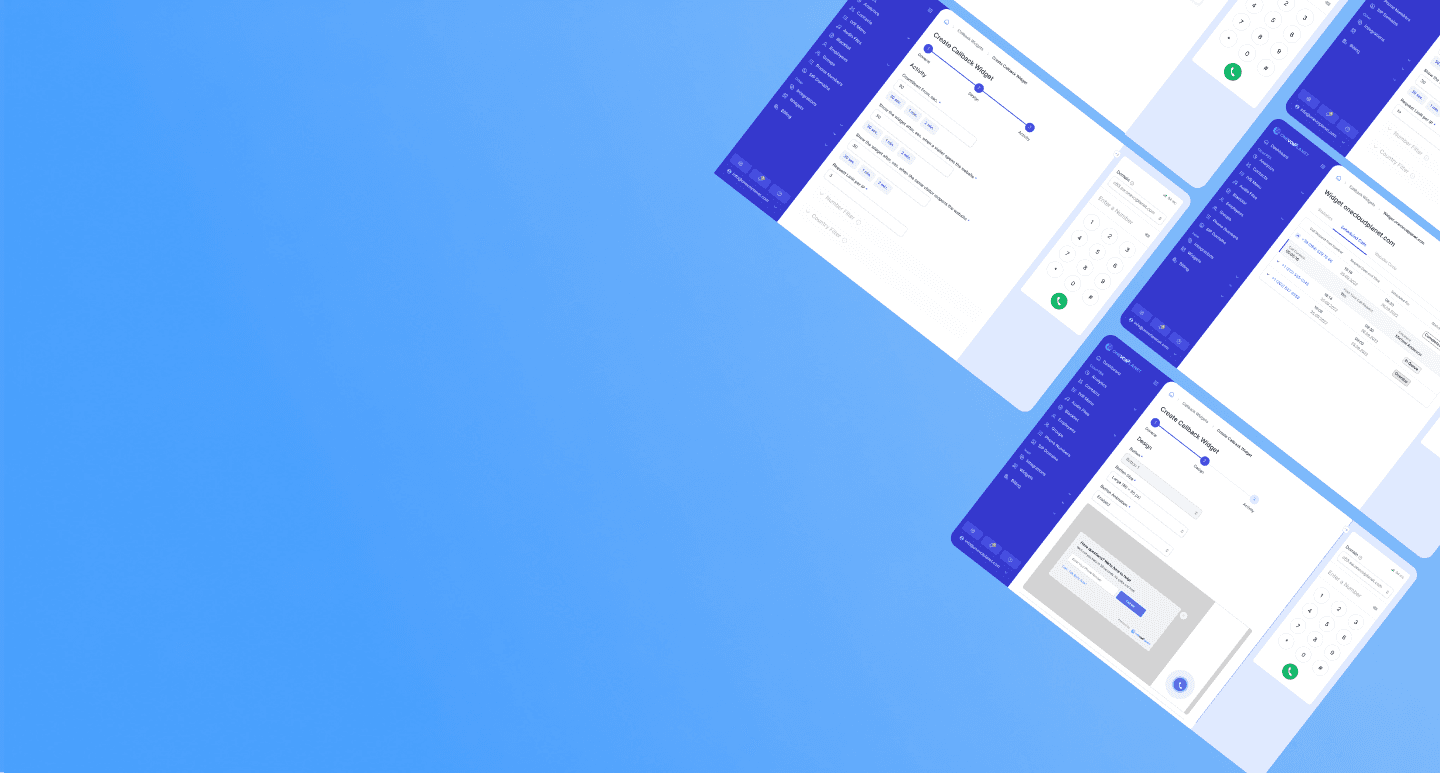
The widget is fully configurable: you set its name, the site address, working hours, the employee or group that receives the calls, its appearance, and display rules.
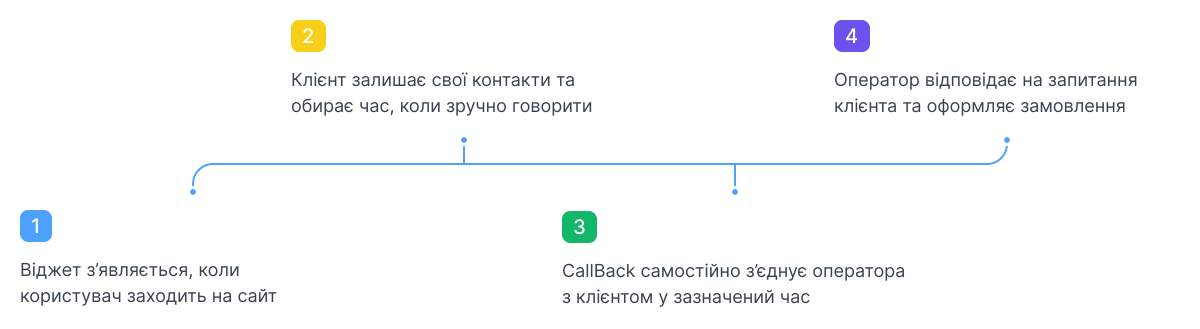
A visitor requests a call through the widget on your site and leaves their phone number. The request is routed to the employee or group you assigned to the widget, and OneVOIPlanet connects the caller with an operator.
You control this behaviour with the widget settings, including working hours and a countdown that shows the visitor the maximum time before they are called back.
Ordering a callback means a visitor uses the widget on your site to leave their phone number. Their request is then delivered to the assigned employee or group, who calls the visitor back to provide assistance.
A visitor orders a callback directly on your website, wherever the OneVOIPlanet CallBack widget is displayed. They open the widget, enter their phone number, and submit the request.
The CallBack widget gives visitors a fast, one-step way to be contacted without dialing a number themselves. Because it is created in your OneVOIPlanet account and simply embedded on the site, it needs no extra hardware and routes each request straight to the right employee or group.
The widget appears only where its code snippet is embedded, so you control where it shows by adding the code to your site. To install it, copy the widget code and paste it as the last script inside the body of your root index.html file.
You can also limit when it appears through the display settings, for example by hiding it outside working hours.
Each request is routed to the employee or group assigned to the widget, so a call directed to a group can be picked up by any available member. You can define working hours for receiving calls and hide the widget outside those hours, and a countdown shows the visitor the maximum time before they are called back.