 +1 (786) 209-1854



Call log
- Go to the "Statistics" section.
- Select "Call log".
- Choose the required section: "All", "My calls", or "Missed calls".
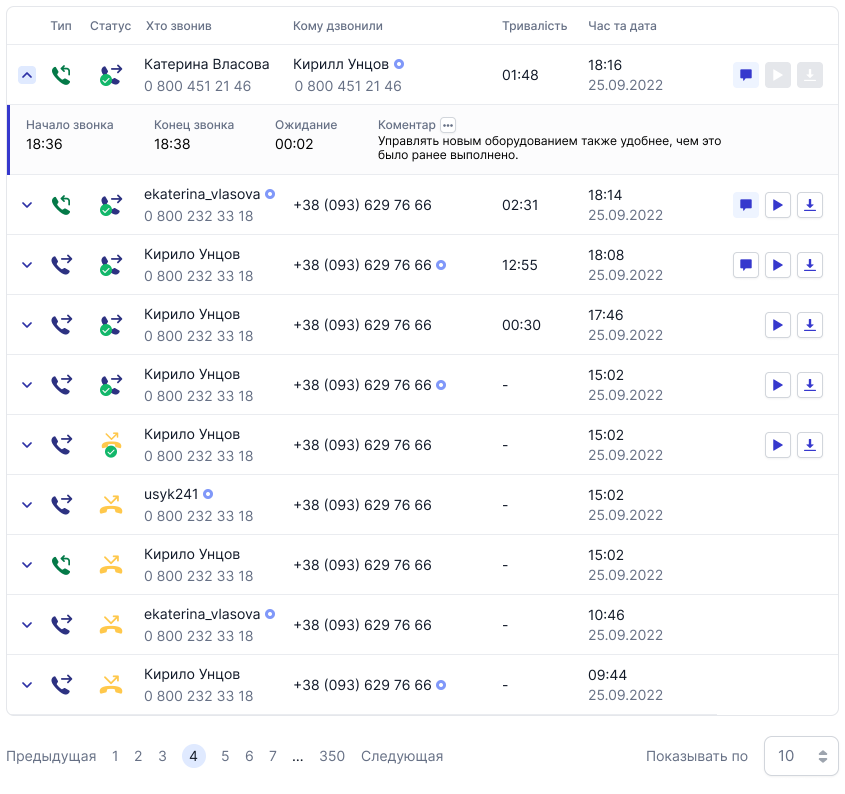
Access depends on the role: Administrator and Supervisor can see full statistics and calls of all agents; Agent and Accountant see only their own call log.
What is displayed
Call type (incoming / outgoing), status (icon, hover for description), caller (who called), recipient (who was called), duration (from the moment the call was answered), wait time, date and time, download audio recording, listen to audio recording, call comment.
"Caller" / "Recipient": first name, last name, and phone number; if the contact was not added — phone number only. If the number was previously added to "Contacts", the contact name and number are displayed instead of just the number. An icon indicates who ended the call.
Call type
 Incoming
 Outgoing
Status
Call statuses allow you to determine the state a call is in.
 Called and the call was answered by the operator
 Called and the subscriber's phone is turned off or unavailable
 Called and the subscriber hung up
 Called the subscriber and there was no answer
 The operator made a call and hung up
 Missed call
 Called back a missed call
 Unknown error
 Talked and a network error
 The call is in progress (ringing)
 Attempt to connect to the operator
 Call dropped due to no available channels
 Missed call from a subscriber while offline


Call comment
Maximum length — 200 characters.
- Click the comment button.

- Enter a comment.

- Click "Save".
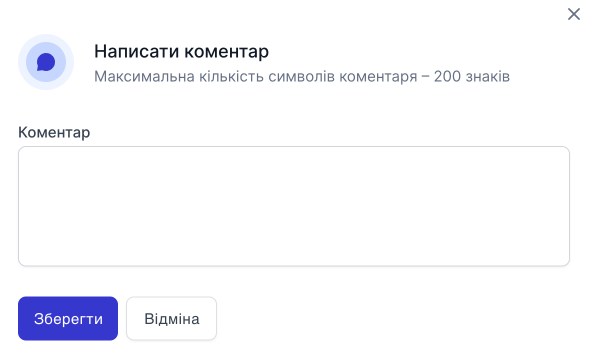
After adding, the icon changes color and the entered information is displayed. Comments can be edited and deleted.
