 +1 (786) 209-1854



Creating a voice menu
Before creating a voice menu (IVR), make sure that music and voice files have been added.
Music files. The melodies a customer hears before being connected to an operator.
Learn more about music files
Voice files. The voice recording a customer hears when contacting you.
Learn more about voice files
How to create a voice menu?
- Go to Voice menu (IVR).

- Click Create IVR template.

Creating an IVR template is divided into two stages. In the first stage, you configure the general parameters of the voice menu.
- Come up with and enter a name for the voice menu.
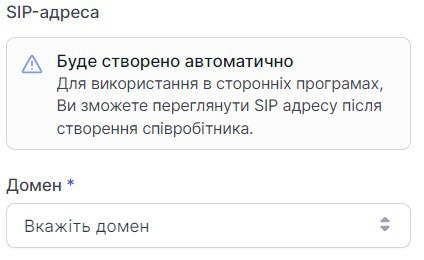
- Select the domain in which the voice menu will be created.
- If needed, add a description of the voice menu.
-
Wait settings
When working with the IVR menu: if no data was entered (a menu item number, etc.) within the specified input waiting interval, the user will be redirected based on the corresponding setting.
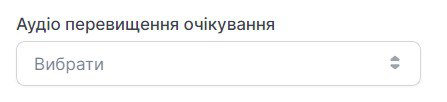
For example, the customer did not select a menu item number (did not press any button) within the time you specified in Waiting time, sec. (at least 3 sec). In that case they will hear the Wait timeout audio, if you select it. Specify the time (in seconds) during which the system will wait for the customer's choice (pressing a menu item number button).
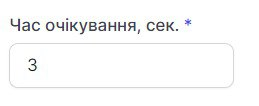
If the customer did not select anything within this time, you can configure the Wait timeout audio.
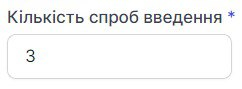
- When working with the IVR menu: the specified number of errors (attempts to enter a nonexistent menu item number) during menu item number entry has been exceeded. For example, the customer selected a nonexistent menu item number (pressed the digit "6", although the voice menu has only 3 menu items: digits "1", "2", "3"). You choose the number of incorrect entry attempts in Number of entry attempts (at least 1).
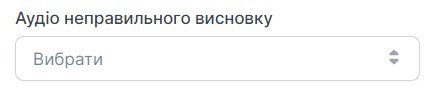
Next, you need to select the Incorrect entry audio, which the customer will hear on an incorrect attempt to enter a menu item number.
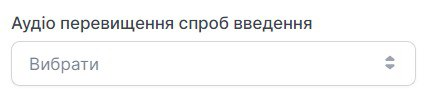
You can also select the Entry attempts exceeded audio, which the customer will hear after exceeding the number of entry attempts.
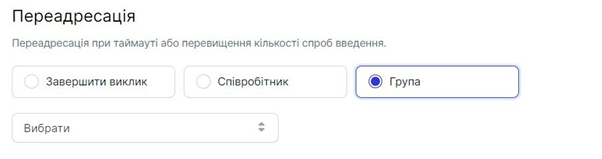
- Forwarding.
Forwarding on timeout or when the number of entry attempts is exceeded. That is, in this item you select the action that will occur if the customer does not select anything in the voice menu or exceeds the number of incorrect entry attempts.
You can choose one of three actions:
- end the call;
- select an employee to whom the call will be transferred;
- select a group to which the call will be transferred.
Returning to the menu.
To return to the previous section of the voice menu (IVR), the system uses the "*" (asterisk) key.
- Click Save.
In the second stage, you select the time range and voice files for the greeting and menu description.
You can set up a voice menu for your company's working and non-working hours, or a 24/7 one.
For working and non-working hours
- Click Working hours.
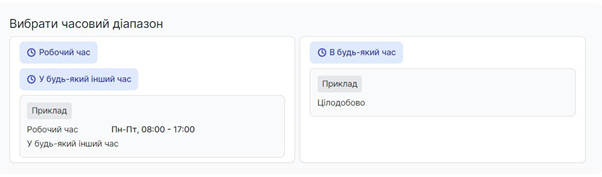
- Define the working hours. After defining the time for the "Working hours" time range, the "At any other time" time range will be calculated automatically.
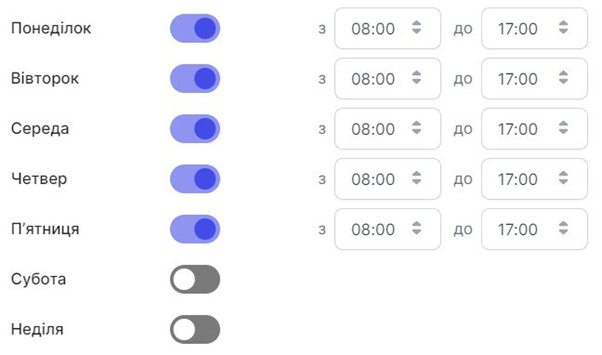
You can select the working days of the week and the start and end time of the working day.
- Click Save.
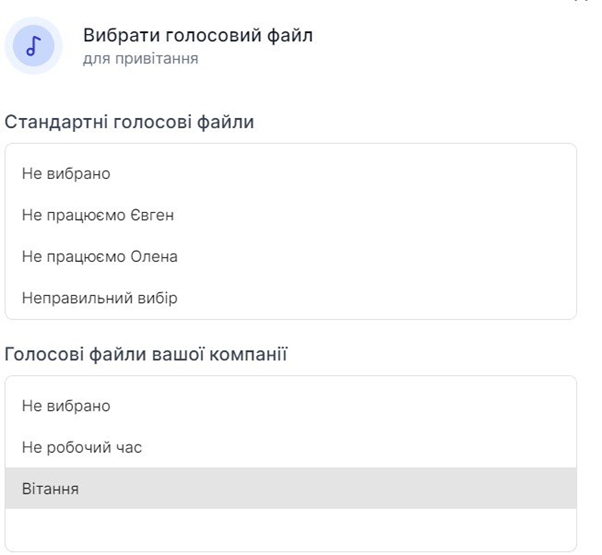
- Click Select voice file for working hours.

If needed, you can add another greeting. To do this, click + Add additional greeting.
- Select the file you need.
- Click Save.
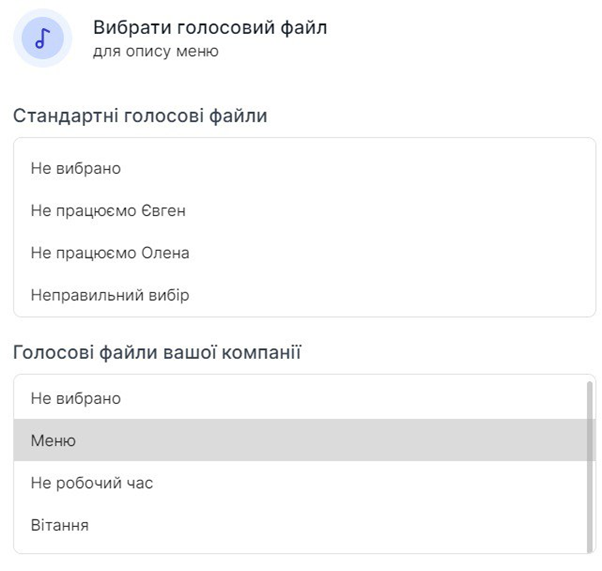
- Click Select voice file for working hours.

- Select the file you need.
- Click Save.
- To create menu items, click + Menu item.
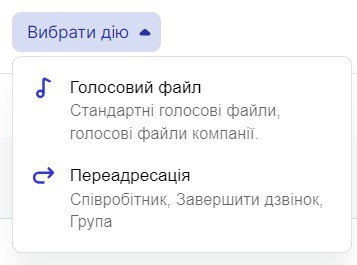
- Next, you need to select the action for this menu item - either the customer will listen to certain information (Voice file), or the customer will be forwarded to a group or an employee, or the call will be ended.
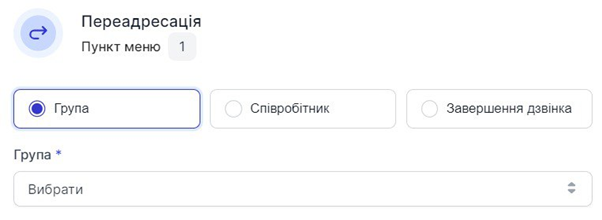
- Click Save.
-
This way you can add up to nine menu items.
-
If needed, you can add up to nine submenu items to each menu item. To do this, click + Submenu.

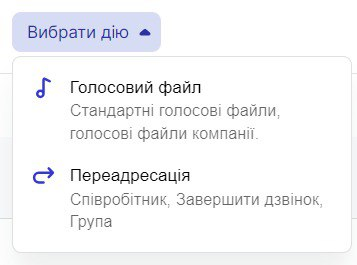
- Next, you need to select the action for this menu item - either the customer will listen to certain information (Voice file), or the customer will be forwarded to a group or an employee, or the call will be ended.
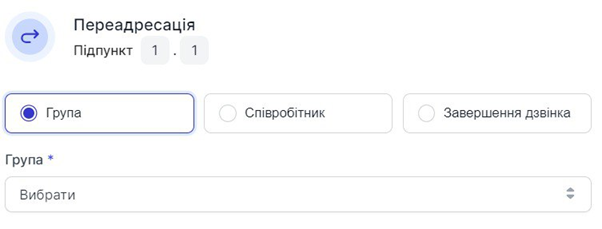
- Click Save.
- After you have added all the necessary menu items and submenu items, in the top right corner of Voice menu editing click Save voice menu.
- To set up the voice menu for non-working hours, click At any other time.
The subsequent settings are the same as for working hours.
24/7 voice menu Suitable for companies that operate around the clock, 7 days a week.
Click Any time.
The subsequent settings are the same as for working hours.