 +1 (786) 209-1854



Integration with KeyCRM
KeyCRM is a Ukrainian CRM system that is useful for any entrepreneur (services, ecommerce, contact centers/online consultations, the beauty and health industry), as it automates processes present in almost every business:
- Communication with customers via messengers, social networks, phone, Email, etc.;
- Collecting and processing requests (leads), orders, and service bookings from any source: websites, Instagram pages, chats, online stores and marketplaces;
- Working with sales funnels, deals, and projects;
- Analytics and reporting on various aspects of the business, including: finance, sales, channels (chats), funnels, manager performance and much more;
Integration capabilities
- Call log (all incoming and outgoing calls in the request card).
- Listening to the call audio recording in the CRM.
- Tracking missed calls.
Setting up the integration with KeyCRM
To set up the KeyCRM integration with OneVOIPlanet, you need to:
- Click Integrations.

- Go to KeyCRM.

- Activate the integration.

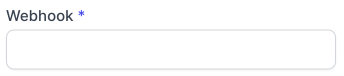
- In the Webhook field, enter the webhook key for the KeyCRM API that allows identifying the KeyCRM account. How to generate an API Key?
- Click Save.
How to generate an API key?
-
Go to your KeyCRM account.
-
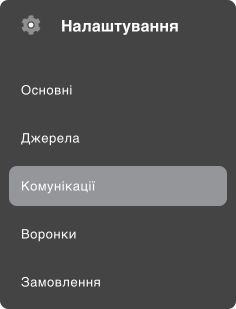
Click Settings.

- Go to Communications.
- Go to the Telephony tab.

- Click the Add a new service button.

-
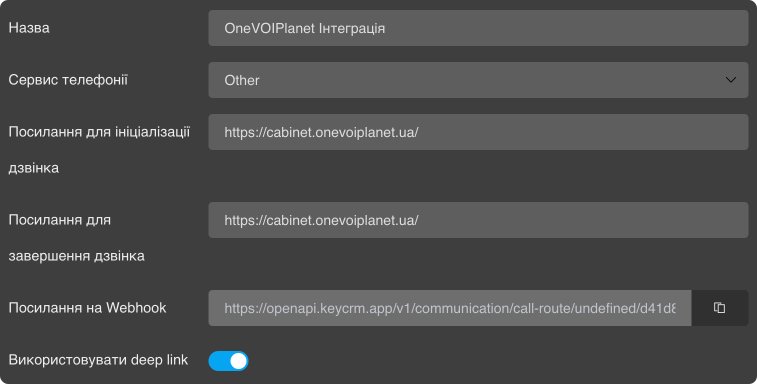
On the creation page, enter a name, for example OneVOIPlanet Integration.
-
In the Telephony service field, select the Other service.
-
In the Call initialization link and Call termination link fields, enter the link to the telephony account https://cabinet.onevoiplanet.ua
-
Enable the deep link option.
-
Click the Add button.
- Add the required number of employees, an internal number (for example: 000domainc000), and select the manager this internal number will belong to.

- Click the Add button.
Find the SIP account numbers in your OneVOIPlanet personal account in the Employees section.

Take the SIP account number of the employee (manager), and add the domain name of your domain. This gives 001domainc001.

- Click the Add button.
-
Refresh the page.
-
Click the integration edit button.

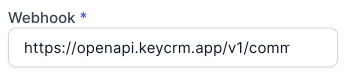
- Copy the Webhook link.

- Paste the Webhook link into your OneVOIPlanet account.
- Click the Save button.

The integration has been set up successfully.