+1 (786) 209-1854



Setting up the Acrobits Softphone app on iOS
Setting up the Acrobits Softphone softphone on the iOS operating system of a mobile phone.
In the App Store, you need to download the app called Acrobits Softphone. One-time cost 7.99$.

To enter the registration data in the Acrobits Softphone app, you need to log in to your OneVOIPlanet account.
More about logging in to your account →
In your account, go to the employee's SIP account.
In the Acrobits Softphone app:
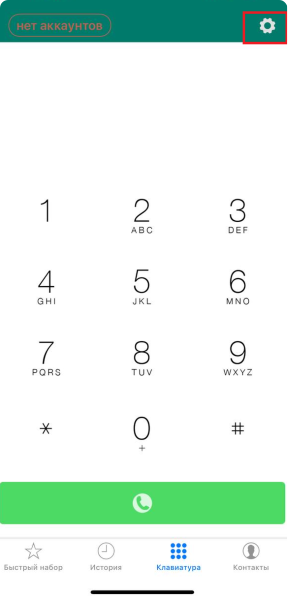
- Confirm permission to access all requests. After confirming, click Settings in the top right corner.
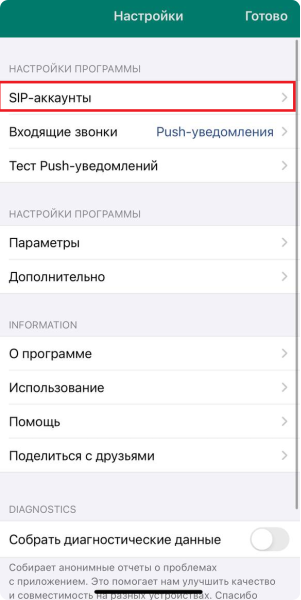
- Select SIP accounts.
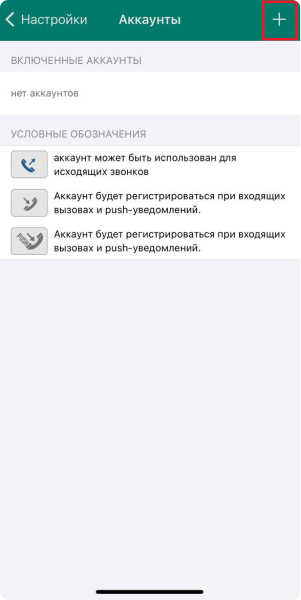
- In the top right corner, click the + sign.
- Select Standard SIP account.
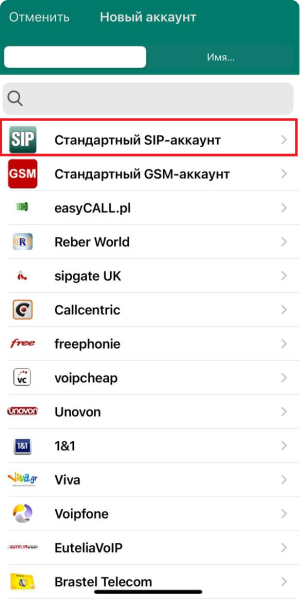
-
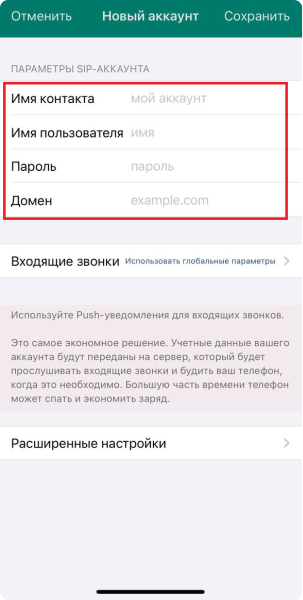
Fill in the fields according to the employee's information from your account.
Contact name - this is the SIP address (005, for example)
Username - this is the SIP address (005, for example)
Password - this is the Password from the SIP account. To view it, click Copy and paste it into any free space.
Domain - this is the Domain (c333.sip.onevoiplanet.com, for example)
After filling in the fields highlighted in red, click the green Save button.
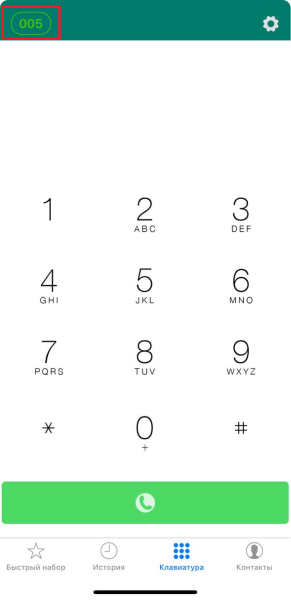
- To check the status activity, click Keypad at the bottom. A green oval indicates that the app is set up correctly and you can receive and make calls.