+1 (786) 209-1854



Setting up the PortSIP app
Setting up the PortSIP app on Android
Setting up the PortSIP softphone on the Android operating system of a mobile phone.
In Google Play, you need to download the app called PortSIP Softphone.

To enter the registration data in the PortSIP app, you need to log in to your OneVOIPlanet account.
- Click Employees.

- Click the employee's full name, or click the ... button and select Edit.

- Select SIP account and the employee's data will open: SIP address, domain, and password.
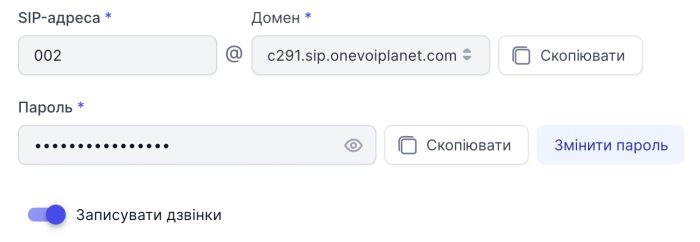
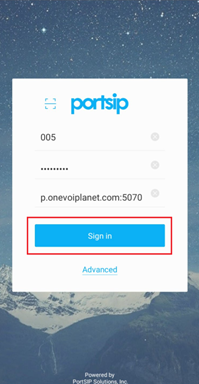
- In the first field, Username, enter the employee's data from the SIP account, namely the SIP address. For example, 003.
In the second field, Password, enter the password from the SIP account. To view it, click Copy and paste it into any free field.
In the third field, SIP Domain, enter the Domain and, with no space, :5070 or :5071.
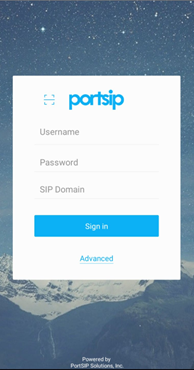
- After filling in, click Sign in.
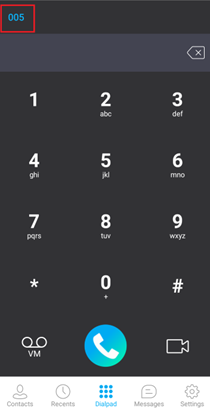
- The status activity is indicated in blue in the left corner.
Setting up background mode in PortSIP on the Android operating system of a mobile phone
To set up the PortSIP softphone to work in background mode, you need to open the app.
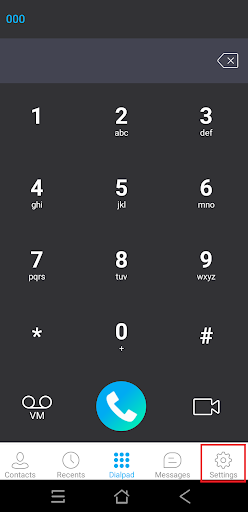
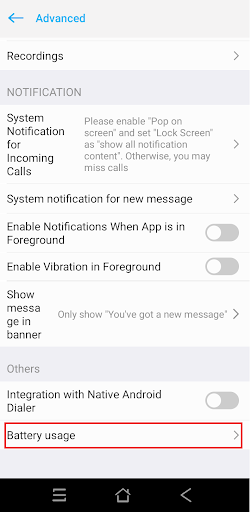
- Click Settings.
- Go to Advanced.
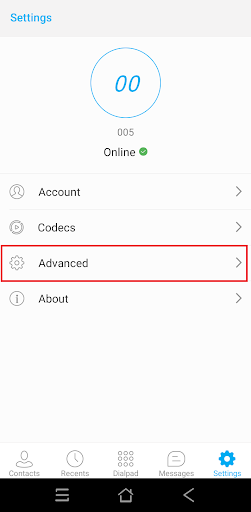
- At the very bottom, select Battery usage.
- Select Allow.
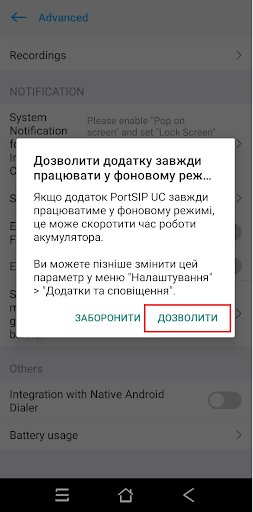
After this, the PortSIP softphone works in background mode.
Setting up the PortSIP app on iOS
Setting up the PortSIP softphone on the iOS operating system of a mobile phone.
In the App Store, you need to download the app called PortSIP Softphone.

To enter the registration data in the PortSIP app, you need to log in to your OneVOIPlanet account.
- Click Employees.
- Click the employee's full name, or click the ... button and select Edit.

- Select SIP account and the employee's data will open: SIP address, domain, and password.
- In the first field, SIP login, enter the employee's data from the SIP account, namely the SIP address. For example, 003.
In the second field, Password, enter the password from the SIP account. To view it, click Copy and paste it into any free field.
In the third field, SIP Server, enter the Domain and, with no space, :5070 or 5071.
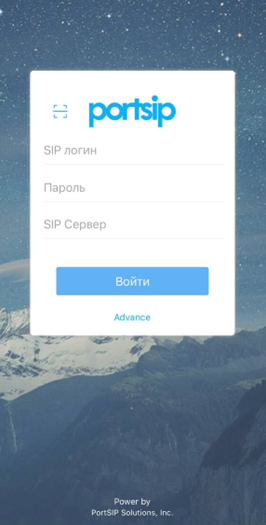
- After filling in, click Sign in.
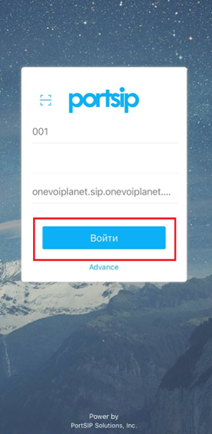
- The status activity is indicated in white at the top.