 +1 (786) 209-1854



Setting up Telegram notifications
Please note that only the Company Owner and the Supervisor are able to add and configure a contact
The following notifications are available for Telegram:
-
Notification about a new pending callback widget request
-
Notification about a missed call
-
Notification about company deactivation
How to add Telegram to receive notifications?
- Sign in to your personal account
More about how to sign in to your personal account →
- Go to General settings (the button looks like a gear)

- Click Add a contact for notifications

- In the New notification contact drop-down menu, select Telegram
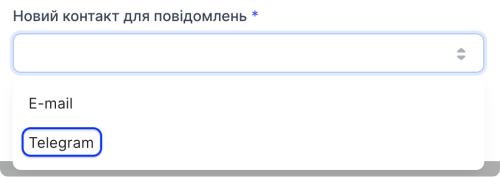
- Follow (you or your employee) the link to authorize in the Telegram bot
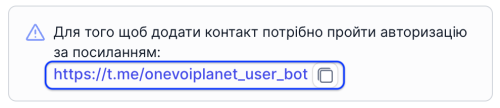
- Click Open in web or Send message

- At the top of the chat, click Start

- Select a language
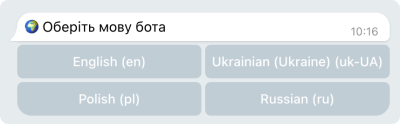
- Click Authorize on the site

- Click Open Link
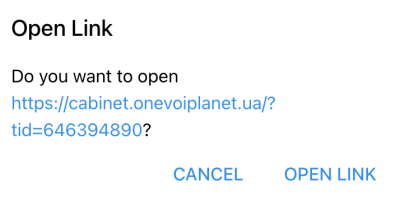
- After following the link, your personal account or the sign-in page will open
- To configure notifications, go to general settings
- Select the notifications you need

- Click Save
The Telegram contact has been added successfully.
Setting up notifications about a new pending callback widget request
- In the contacts table, select Widgets for the required contact

- Click Save
Now this contact will receive a notification about every new pending callback widget request.
Setting up notifications about a missed call
- In the contacts table, select Calls for the required contact

- Click Save
Now this contact will receive notifications about all of its missed calls.
Setting up notifications about company deactivation
- In the contacts table, select Finance for the required contact

- Click Save
Now this contact will receive notifications about company deactivation.